
How to Get AI to Update Your WordPress Website (Safely)

A practical, step-by-step guide to connecting an AI assistant like Claude to your WordPress site — and using it to fix the data your website is quietly losing.
Quick answer:
You can connect an AI assistant like Claude Code (recommended) directly to a WordPress website and have it audit, update, and improve your site and its tracking data. There are two ways to do it. The secure, long-term method is Claude Code over SSH, which uses no third-party plugins and works on staging and live sites alike. The fast and furious method is a WordPress MCP plugin, but because many of these plugins expose code-execution tools, they should only ever be used on a staging site — never on a live, production site. This guide explains both, with step-by-step setup for Mac.
The problem: your website is quietly losing half its data — right when AI needs it most
Here’s the uncomfortable truth most WordPress site owners never hear: you’re probably losing a big chunk of your data before it’s ever recorded.
Client-side (browser) tracking — the kind most sites still rely on — leaks everywhere. Ad blockers stop 30–40% of tracking scripts before they fire. Browser privacy features keep shrinking cookie lifespans. And GA4’s standard client-side setup quietly loses around 44% of your actual events. You’re making decisions on barely half the picture.
That was merely annoying when “data” just meant a dashboard nobody read.
It’s a genuine problem now that AI runs on your data. An AI assistant is only as good as what you feed it. Clean, complete, well-structured data in — sharp answers out. Messy, missing, mislabelled data in — confident nonsense out.
So the goal isn’t “add AI to my website.” The goal is to use AI to find and fix what’s broken in your data, then capture the good stuff properly so it compounds. At Seresa we call that planting your Data Trees (a term we coined) — you can’t harvest insight from data you never collected cleanly.
The good news: the tool that exposes the problem is also the fastest way to fix it.
Think of it as the best analyst you’ve ever hired
Imagine a new hire walks into your business tomorrow.
They can read every page of your website. Every line of code. Every form, every button, every product. They never sleep, never complain, and never send an invoice. Ask them a question about your data and they answer in seconds — in plain English.
Sounds like a dream employee.
Now imagine you hand them the master keys to the building, the safe, and the bank account on their first morning — before you’ve even checked how the locks work.
That’s the part most people get wrong.
The new hire is real, of course. It’s an AI assistant like Claude Code (highly recommended), and connecting it to your WordPress site is one of the fastest ways to clean up the messy, leaky data most sites are sitting on. You just have to open the right door — not leave every door open.
Here’s how to do it, in three steps.
Step 1 — Connect the AI to your site (and pick the right door)
This is the step everyone rushes, and it’s the one that matters most. There are two main ways to let an AI like Claude actually reach into your WordPress site. One is the quick door. One is the right door.
Option A — The MCP route (fast, but staging/dev only)
There’s been a lot of noise lately about WordPress MCP plugins. MCP — Model Context Protocol — is basically a standard way for an AI to talk to a tool. Translation: install a plugin, paste a key into Claude, and suddenly your AI can read and change your site through plain-English requests. It feels like magic the first time.
Here’s the catch, and it’s a big one.
Several of the popular MCP plugins ship with code- and command-execution tools switched on — the kind of thing that lets an AI (or anyone who gets hold of the connection) run commands directly on your server. On a development or staging site, behind a login, that’s fine. It’s how you experiment.
On a live, production site, it’s a loaded gun left on the kitchen table. One security review found that roughly 41% of public MCP servers ship with no authentication at all. And the single most popular early plugin in this space has already been deprecated — yet it’s still installed and active on thousands of live sites, exactly the “set it up once and forget to turn it off” trap.
So choose carefully – do your research – check the issues before jumping in with MCP ‘magic’
Our position is simple: MCP is brilliant for staging. Don’t run it on production. If you do use it, use it on a test copy of your site, and turn it off the moment you’re done.
Option B — The SSH route via Claude Code (the one we recommend)
The slightly more technical path is also the far more secure one — and it’s the one that actually scales, with no risky third-party plugins involved at all.
Instead of leaving an open door in a plugin, you use Claude Code (Anthropic’s command-line tool) and connect to your server over SSH — the same encrypted, battle-tested connection developers have trusted for decades. The AI works through your secure session, with your permissions. Nothing stays exposed on the public web. Nothing gets left switched on by accident.
The best part: it works the same way on every environment. Test on staging, then move the exact same workflow to live with confidence. No swapping plugins. No “is this safe on production?” anxiety.
Yes, it asks a little more of you up front. That’s the trade. A few minutes learning the door versus months of an open one.
Before anything else — one phone call to make.
SSH access for AI (or you) isn’t guaranteed.
Some hosts (especially budget shared plans) don’t offer it at all, or only on higher tiers. So step zero is simple: ask your host (or your AI) whether you have SSH access, and if so, get your username, server address, and port number from them. If the answer is a flat no, that’s genuinely the one situation where running MCP on a staging copy of your site becomes your fallback — not your first choice, your only choice. But ask first. Most decent hosts have it.
Got SSH? Here’s the Mac walkthrough.
(We’ll cover Windows in a later update — Mac for now.)
1. Open Terminal. Press Cmd + Space, type Terminal, hit Enter.
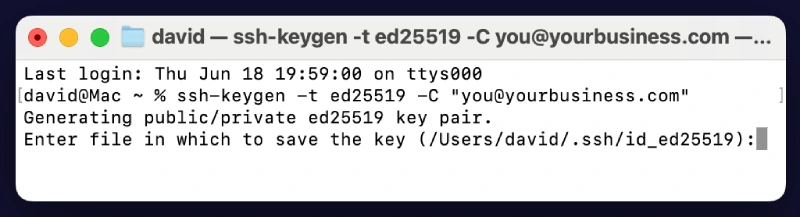
2. Create your key. Run:
ssh-keygen -t ed25519 -C "you@yourbusiness.com"
Press Enter to accept the default location, then set a passphrase when asked. Translation: you’ve just made a matched pair — a private key that stays locked on your Mac and never leaves it, and a public key that’s safe to hand out. Think of the public one as a tamper-proof token your host can trust.
3. Copy your public key straight to the clipboard:
cat ~/.ssh/id_ed25519.pub | pbcopy
(pbcopy is a handy Mac-only trick — it puts the key on your clipboard, ready to paste.)
4. Give the public key to your host. Most control panels have an SSH Access or Manage SSH Keys area where you paste it in and click Authorize. Some hosts let you skip the panel entirely with one command — ssh-copy-id username@yourserver.com — which posts the key across for you.
5. Connect. Now you can open a secure session:
ssh username@yourserver.com -p 22
(Swap in your real username, server, and port — your host gives you all three. Port 22 is the default, but some hosts use a different one.)
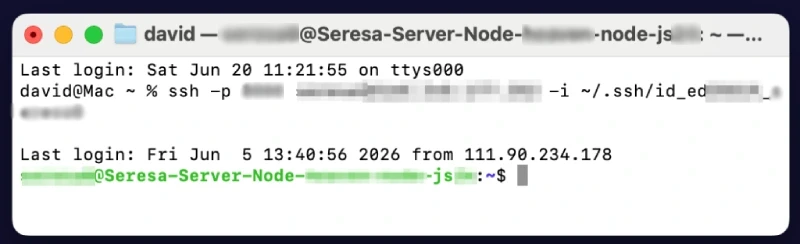
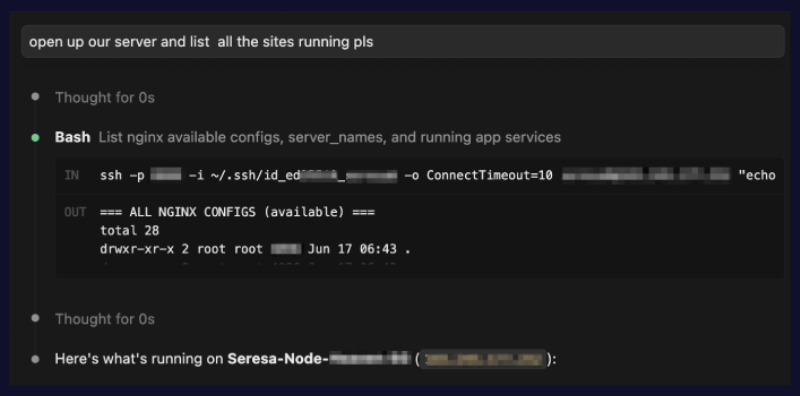
6. Hand it to Claude. With your secure session open, start Claude Code in your site’s directory and point it at the job — “audit my tracking setup and tell me what’s missing.” The AI now works through your encrypted session, with your permissions, and nothing is left exposed when you close the laptop.
AI Automation Best Practices
One habit worth building in from day one. Letting an AI make changes to a live site is brilliant — right up until the moment it isn’t.
Having said this – we use Claude Desktop and Claude Code and we have never had a major issue.
But before you hand over the keys, teach it the house rules.
AND KEEP A MANUAL BACKUP BEFORE STARTING WORK!
We recommend creating a Site Update Skill for Claude Code (or Claude Desktop) that bakes your safety protocols into every job: take a manual backup before any change, log what was touched, and automatically tidy away old backups so they don’t pile up. Set the rules once, and the AI follows them every single time — no “I forgot to back up” sinking feeling. Belt and braces, on autopilot.
Step 2 — Let AI tell you the truth about your data structures
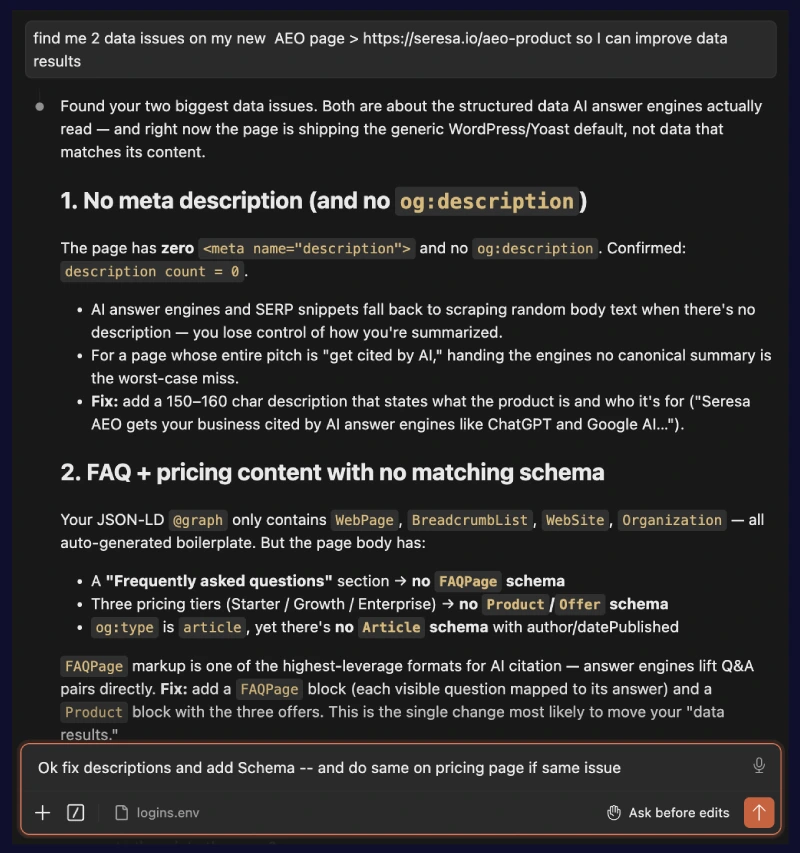
Once Claude can see your site, ask it the question your analytics dashboard (or even your wev dev) can’t answer honestly:
“Where is my data leaking, and what am I failing to capture?”
“What can I do to improve my data quality so I know what people are looking at?”
“I’ve heard I can add data to buttons and links check give me some suggestions to improve my data quality.”
This is where an AI earns its keep. In minutes it can crawl your theme and templates and surface the gaps a human would spend a day hunting for — events that fire client-side and get blocked, forms that submit without recording anything useful, buttons that lead somewhere important but carry zero context, tracking that double-counts or doesn’t count at all.
You’re not guessing any more. You’ve got a plain-English report of exactly what’s broken.
Step 3 — Fix it: make every click carry a story
Here’s the step that turns a tidy-up into a genuine upgrade — and our favourite worked example.
Most websites treat a button click as a yes/no event. Someone clicked something. Somewhere. We think. That’s almost useless.
Now picture this instead. You ask Claude to add structured data attributes to your buttons and links across the site. From that moment, every single click carries a whole payload of context with it — which button, on which page, in which section, what it was offering, where it sent the visitor, what they’d looked at first.
A click stops being a tally mark and becomes a sentence.
And here’s the part people miss: this isn’t just for online shops. You don’t need a checkout to benefit. A consultancy, a clinic, a school, a property site — any WordPress site at all — can suddenly understand what visitors are actually doing: which paths they take, what they reach for, where they drop off, what they ignore.
You get the rich behavioural picture people usually bolt on heavyweight session-recording plugins to chase — the Hotjar-style tools that slow your site down, spook privacy-conscious visitors, and (let’s be honest) get installed during one campaign and then never removed. You get the insight, without the bloat, baked into your own site and owned by you.
<a href="#gorilla-chat" class="ds-btn ds-btn--cerise" data-inpipe-event="yes" data-inpipe-event-name="generate_lead" data-inpipe-link-type="button" data-inpipe-link-context="hero" data-inpipe-item-id="gorilla_chat" data-inpipe-item-name="Chat with Gorilla" data-inpipe-item-category="aeo" data-inpipe-content-type="cta" data-inpipe-meta="rebuilt site may 28 2026">Chat with Gorilla</a>
Frequently asked questions
Can an AI like Claude actually update a WordPress website?
Yes. An AI assistant like Claude can read, audit, and update a WordPress website once it’s connected to the site — either through Claude Code over an SSH connection, or through a WordPress MCP plugin. It can edit theme files, adjust tracking code, add data attributes to buttons and links, and report on what’s broken, all from plain-English instructions.
What is the safest way to connect AI to WordPress?
The safest way to connect AI to WordPress is Claude Code over SSH. It uses your own encrypted, permission-controlled session, installs no third-party plugins on your site, and leaves nothing exposed on the public web when you’re finished. It also works identically on staging and live sites, so you can test safely before going live.
Is a WordPress MCP plugin safe to use on a live site?
Generally, no. Many WordPress MCP plugins ship with code- or command-execution tools enabled, and one security review found that around 41% of public MCP servers have no authentication at all. That’s acceptable on a private staging site for experimentation, but on a live production site it’s a serious risk — especially if the plugin is installed once and then forgotten and left active.
Do I need SSH access to use AI with my WordPress site?
You need SSH access to use the recommended Claude Code method. SSH access isn’t guaranteed — some budget or shared hosting plans don’t offer it, or only on higher tiers — so check with your host first. If you genuinely can’t get SSH access, running an MCP plugin on a staging copy of your site is the fallback option.
How do I connect Claude to WordPress on a Mac?
On a Mac, open Terminal, generate an SSH key with ssh-keygen -t ed25519, copy the public key with pbcopy, and authorize it with your host (via their control panel or ssh-copy-id). Then connect with ssh username@yourserver.com, and start Claude Code in your site’s directory. The full step-by-step is in the Step 1 section above.
Does this only work for e-commerce sites?
No. Any WordPress site benefits, not just online shops. Adding structured data attributes to buttons and links means every click on any site — a consultancy, clinic, school, or property site — carries rich context about what visitors are doing, without heavy session-recording plugins.
How do I stop AI from breaking my live website?
Set safety rules before you start. We recommend creating a Site Update Skill for Claude Code or Claude Desktop that takes a manual backup before every change, logs what was modified, and automatically cleans up old backups. With the rules built in, the AI follows the same safe protocol on every job. And alwats keep fresh manual backups.
Where this naturally leads
So you’ve connected an AI the secure way, found your gaps, and started enriching every interaction with real context.
There’s one question left: where does all that beautiful, clean data actually go?
If it only lives in a browser, the ad blockers and privacy walls will eat a chunk of it before it ever lands. That’s exactly the leak we started with.
This is where Transmute Engine™ picks up the baton. Our WordPress plugin, inPIPE, captures those enriched events — the rich button clicks, the form submissions, the journeys — server-side, where blockers can’t touch them, and routes them to wherever you need them: GA4, Google Ads, Facebook, and your very own BigQuery warehouse. Your data, in your house, complete — not sampled, not rented, not locked in someone else’s silo.
The AI helps you create clean data. Transmute Engine makes sure you actually keep it.
That’s a Data Tree worth planting.
Open the right door. Capture the whole picture. Own it forever.
Our Transmute Engine service does a lot more – all data captured server side and sent where you need it seamlessly at a button click.
[ See how Transmute Engine™ captures the data your browser is losing → Start free ]
P.S. New to the idea that your browser is quietly throwing away half your data? Start with Who Stole AI’s Dinner? — then see why the fix is a pipe you’ll never need to smoke.