
How to Check If GTM Is Actually Working on Your WordPress Site
70% of WooCommerce stores have broken or incomplete Google Tag Manager tracking—and most store owners find out only after weeks of misallocated ad spend. Here’s how to know in 10 minutes whether yours is one of them.
The instinct to open GTM’s Preview Mode and call it done is understandable. But GTM Preview Mode has 26 documented failure scenarios (Analytics Mania, 2025). That means the tool built to tell you GTM is working can itself be wrong. A proper verification uses four checkpoints, starting with an external tool that has no GTM dependencies at all.
Step 1: Start with Tag Assistant (Not GTM Preview Mode)
Google’s Tag Assistant at tagassistant.google.com is your most reliable first check. It connects to your live site externally and reports which Google tags are present and firing—without any GTM container login required.
Go to tagassistant.google.com, enter your site’s URL, and start recording. Navigate to a key page: your homepage, a product page, and your checkout confirmation page. Tag Assistant will show you:
- Whether the GTM container is detected — confirms the snippet is in your page HTML
- Which tags are firing — GA4, Google Ads, Facebook Pixel if any
- Any tag firing errors — auth failures, malformed container IDs
If Tag Assistant shows no GTM container on your site, stop here. Your installation has a structural problem—either the plugin isn’t inserting the snippet or your caching layer is serving stale pages. No amount of GTM configuration fixes a missing snippet.
You may be interested in: Your WooCommerce Cart Abandonment Rate in GA4 Is Based on Incomplete Data
Step 2: Use GTM Preview Mode—But Know Its Limits
GTM Preview Mode does one thing well: it shows you the sequence of triggers and tag firings as you navigate your site. What it doesn’t guarantee is that those tags actually delivered data to their destinations.
To use it: in your GTM container, click Preview. A debug window opens and follows your browser session. Navigate through the funnel you want to verify—product view, add to cart, checkout, and purchase. In the left panel, look for each event and confirm the correct tags fired on the correct triggers.
The critical caveat: GTM Preview Mode has 26 documented failure scenarios (Analytics Mania, 2025). Cache plugins, adblocker extensions, security headers, and cross-origin restrictions can all break the preview connection without breaking your actual tags—or vice versa. A “fired” status in Preview Mode confirms the container logic is correct. It does not confirm data reached GA4 or Facebook.
Common Failure Points on WordPress
GTM4WP is installed on over 2 million WordPress sites (WordPress.org, 2025). Every major WooCommerce update potentially breaks its dataLayer integration. Current conflict sources include:
- WooCommerce 10.x block checkout — the new block-based checkout fires different hooks than the classic checkout GTM4WP was built for
- Google for WooCommerce plugin — injects its own GA4 tracking that conflicts with GTM tags, creating duplicate or missing events
- Block themes — some don’t call
wp_head()andwp_footer()in standard locations, causing GTM snippets to miss entirely - Caching plugins — WP Rocket, LiteSpeed Cache, and W3 Total Cache can serve minified or static pages that strip the dataLayer push
Step 3: Inspect the dataLayer Directly
The dataLayer is the communication bridge between WooCommerce events and GTM. If it’s not being populated, GTM can’t fire anything—regardless of what your container configuration says.
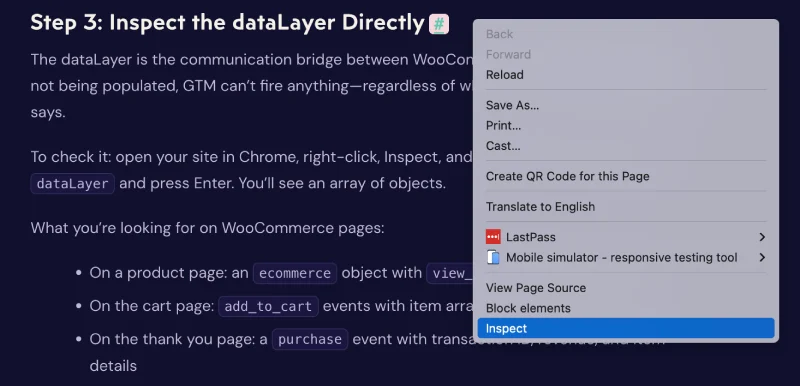
To check it: open your site in Chrome, right-click, Inspect, and go to the Console tab. Type dataLayer and press Enter. You’ll see an array of objects.
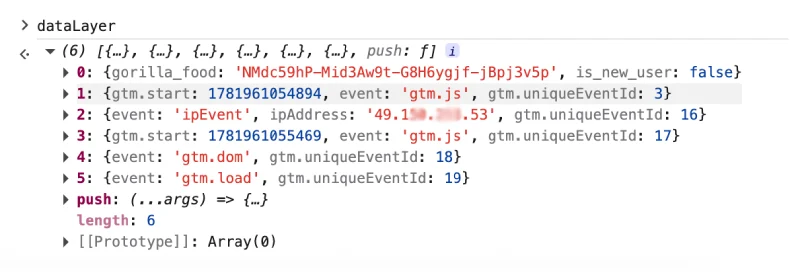
What you’re looking for on WooCommerce pages:
- On a product page: an
ecommerceobject withview_itemand product details - On the cart page:
add_to_cartevents with item arrays - On the thank you page: a
purchaseevent with transaction ID, revenue, and item details
If the dataLayer shows empty arrays or the ecommerce object is missing, your WordPress plugin isn’t capturing WooCommerce events. That’s a plugin-level failure, not a GTM configuration issue. Reconfiguring GTM won’t fix it.
This is where 62% of WooCommerce stores running GTM (SimilarTech, 2025) hit a structural wall. Client-side GTM can only fire what the dataLayer tells it to. If WooCommerce hooks aren’t pushing events correctly—due to plugin conflicts, theme issues, or checkout type changes—GTM is silently tracking nothing.
You may be interested in: X Ads Conversions API for WooCommerce: Server-Side Setup Without GTM
Step 4: Confirm Data Arrived in GA4 Realtime
The final check closes the loop. GTM fired. The dataLayer had data. But did it actually reach GA4?
Open GA4 and go to Reports > Realtime. In a separate window, trigger the event you want to verify—load a product page, add to cart, or complete a test purchase using a 100% discount coupon. In GA4 Realtime, look for the corresponding event within 60 seconds.
What a successful purchase verification looks like:
- The
purchaseevent appears in the Event Count section - The transaction revenue matches your test order value
- The event has associated ecommerce parameters (items, currency, transaction_id)
Poor data quality costs organisations an average of $12.9 million per year (Gartner, 2025). For a WooCommerce store spending $5,000/month on ads, broken purchase tracking doesn’t just create bad reports—it sends budget to campaigns Google or Facebook think aren’t converting. Let that sink in.
What to Do When You Find Broken Tracking
Here’s the thing: client-side GTM has a structural fragility that no verification checklist fully solves. Every WordPress update, every plugin conflict, every theme change is another opportunity for a silent failure. You can run these checks today and have them break next Tuesday.
The permanent fix is to move event collection off the browser entirely. Transmute Engine™ is a first-party Node.js server that runs on your subdomain (e.g., data.yourstore.com). The inPIPE WordPress plugin captures WooCommerce events at the hook level and sends them via API to the Transmute Engine server, which routes them simultaneously to GA4, Facebook CAPI, and Google Ads—without touching a browser, without GTM, without a dataLayer that caching plugins can corrupt.
You don’t verify Transmute Engine with Tag Assistant. You verify it with a BigQuery row count that matches your order count. Exact numbers. No guessing.
Key Takeaways
- Start with Tag Assistant — external verification at tagassistant.google.com is more reliable than GTM Preview Mode for confirming the snippet is present and firing
- GTM Preview Mode has 26 failure scenarios — a “fired” status confirms container logic, not data delivery to GA4 or Facebook
- Inspect the dataLayer in your browser console — empty ecommerce objects mean WooCommerce isn’t pushing events, and no GTM configuration fixes that
- Confirm in GA4 Realtime — the only proof data arrived is seeing the event appear within 60 seconds of triggering it
- 70% of WooCommerce stores have broken tracking — this is a structural problem with client-side GTM on WordPress, not a one-time configuration error
Use Google’s Tag Assistant at tagassistant.google.com. Enter your site URL and it will confirm whether GTM is present and firing. This is more reliable than GTM’s own Preview Mode, which has 26 documented failure scenarios.
The most common causes on WordPress are caching plugins serving stale pages without the GTM snippet, block themes that don’t call wp_head() or wp_footer() correctly, and plugin conflicts with the Google for WooCommerce plugin. Clear your cache, check for conflicts, and verify your GTM plugin is inserting the snippet in the right location.
Open GTM Preview Mode and navigate through a test checkout. In the preview panel, look for the purchase event firing on the thank you page. Then verify the dataLayer in your browser console by typing ‘dataLayer’—the ecommerce object should contain transaction data. Finally, check GA4 Realtime for the purchase event within 60 seconds of completing the test order.
GTM Preview Mode firing doesn’t guarantee data reached GA4. Check three things: confirm your GA4 Measurement ID in the GTM tag is correct, open GA4 Realtime and look for the event within 60 seconds of triggering it in Preview Mode, and verify no adblocker or browser extension is blocking requests from your GA4 Measurement ID.
Yes. Caching plugins like WP Rocket, LiteSpeed Cache, and W3 Total Cache can serve static HTML that strips dynamic elements or predates your GTM snippet installation. Always clear all caches after installing or updating your GTM plugin, and check whether minified scripts are interfering with the dataLayer.
If these four checks show your GTM is broken—or working today but fragile—book a tracking audit with Seresa to see what server-side tracking looks like without the guesswork.